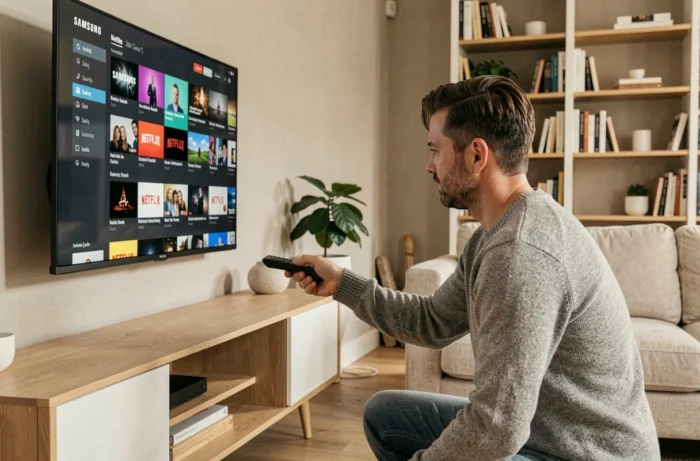
Netflix is pre-installed on almost all Samsung TVs sold in recent years. A dedicated button even appears on some remote controls. The installation or reinstallation process remains simple, but several technical parameters and recent rules related to account sharing can complicate access to the service on certain models.
Tizen OS and Netflix Compatibility on Samsung TVs
Samsung Smart TVs run on Tizen OS, the manufacturer’s proprietary operating system. Netflix is natively integrated: on recent models, the app appears upon first startup, without any manipulation.
On older TVs (from before 2015), the situation is different. Some models no longer receive updates for the Netflix app, which can lead to incompatibilities or a complete blockage. Samsung does not publish a comprehensive list of affected models, and Netflix simply recommends trying the installation to check for support.
To find out if your TV still supports Netflix, the most reliable test is to open the Samsung Apps Store from the Smart Hub menu and search for the app. If it does not appear in the results, the model is likely no longer compatible. It is also possible to check the exact model number of the TV in the system settings and then compare it with the information on the Netflix help page.
The procedure for installing Netflix on a Samsung TV varies slightly depending on the version of Tizen, but the principle remains the same: access the Smart Hub, locate the app, and start the download or update.
Netflix Household: How the Account Sharing Policy Affects Your Samsung TV
Since the rollout of the Netflix Household system starting in 2023, an account is explicitly limited to a single household. Connections outside the declared home network are detected and may trigger a verification request.
In practice, a Samsung TV installed in a secondary residence or at a relative’s home, which never connects to the main household’s Wi-Fi network, risks being gradually blocked. Netflix then offers two options: verify that the device belongs to the household or subscribe to the paid “additional member” option.
This change has direct consequences for installing Netflix on a second Samsung TV. The app downloads and installs without difficulty, but the connection to the account may be denied if the IP address differs from the declared household. User feedback varies on this point: some users report quick blocking, while others experience a grace period of a few days before the verification request.
What to Do If Netflix Requests Household Verification
Verification is done through a temporary code sent via email or SMS to the account holder. If the TV is located in the main household, validation resolves the issue. If the device is located elsewhere, you will need to use the additional member option or use a separate account.
Netflix considers that the household is defined by the main internet connection of the account holder. Regularly changing Wi-Fi networks (for example, alternating between two residences) can lead to repeated verifications.
HDR and Netflix Image Quality on Samsung TVs: Limitations to Know
Recent Samsung TVs display Netflix content in 4K HDR without any special configuration, provided you have a compatible subscription and a sufficiently fast connection. The supported formats are HDR10 and HDR10+.
However, Samsung does not include Dolby Vision on its TVs. Netflix content mastered exclusively in Dolby Vision is streamed in an HDR10 version, which is of lower quality. On models like the S90D or S90H, tests show that the image remains very good in HDR10/HDR10+, but the brightness and contrast nuances specific to Dolby Vision are absent.
This point deserves attention if you are comparing TVs before purchase. A Samsung TV will never render Netflix content in Dolby Vision, regardless of the model or range. For the majority of programs, the difference remains subtle. On certain films or series where the Dolby Vision mastering is particularly well done, the gap may be noticeable.
Troubleshooting Netflix on Samsung: Common Issues and Their Solutions
Several situations frequently arise when Netflix is not working properly on a Samsung TV.
- The app freezes or displays a black screen at launch. Reinstalling from the Smart Hub resolves the issue in most cases: delete the app, restart the TV, and then reinstall Netflix from the store.
- The message “this app needs to be updated” appears even though the update is not available. This usually indicates a model that is no longer supported. Check that the TV’s firmware is up to date in the system settings before concluding a definitive incompatibility.
- Netflix requests to reconnect in a loop after each use. This behavior is often related to a corrupted cache. Resetting the Smart Hub (settings > support > reset Smart Hub) clears local data and forces a clean reconnection.
- The image quality remains in low definition despite a 4K subscription. Internet speed is the primary cause: Netflix adjusts the resolution in real-time. A speed test from the TV or a device connected to the same network can verify if the bandwidth is sufficient.
If none of these solutions work, a complete factory reset of the TV remains the last resort option. It erases all apps and personalized settings, but it resolves the vast majority of persistent software malfunctions.
Samsung TVs offer a smooth Netflix experience on recent models, with some caveats regarding Dolby Vision and account sharing constraints. On an older model, compatibility remains the first point to check before any installation attempt.